Factorio Upgrade Planner Guide: Filters, Blueprints and Downgrades
The Factorio upgrade planner is the green planning tool for replacing many compatible entities at once. Use a blank planner when every normal tier upgrade in an area is wanted; configure filters when only belts, inserters, machines, modules or another precise pair should change. This guide shows the safe workflow, how to update a blueprint, and how to cancel or reverse a bad order.
Last updated: July 25, 2026. Based on Factorio 2.0 and Space Age upgrade-planner behavior documented by the Official Factorio Wiki.
Quick Answer: How Do You Use the Factorio Upgrade Planner?
Choose the green upgrade planner from the shortcut bar, then drag over the factory area you want to change. A blank planner applies the game's standard next-tier replacements. For controlled work, place the planner in inventory, right-click it, and set each source entity on the left and its replacement on the right. Keep construction robots and the replacement items available, check the preview tooltip, and start with a small area.
- Use a blank planner only when broad automatic tier upgrades are acceptable.
- Use filters for jobs such as yellow belt to red belt without touching nearby assemblers.
- Hold Shift while dragging over pending marks to cancel queued upgrade orders.
- Apply a planner to a blueprint in inventory to update the saved design before placing it.
- Create reverse filter pairs when a downgrade or rollback is part of the plan.
Preview the Selection Before Robots Start
The red selection boundary and replacement icons show what the planner is about to affect. A small trial area makes a wrong filter cheap to catch. The screenshot is real Factorio media from the Official Factorio Wiki, not generated artwork or a recreated interface.
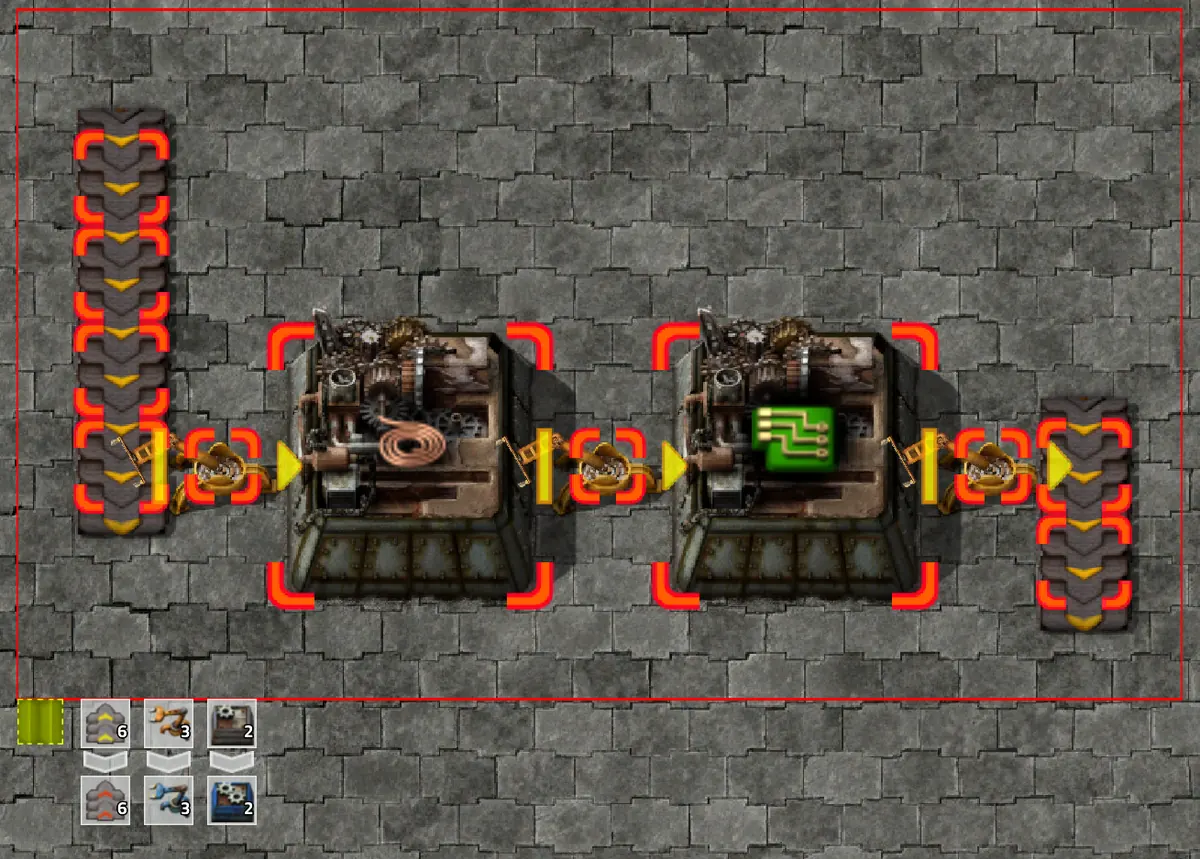
What the Factorio Upgrade Planner Changes
The planner creates replacement orders for compatible entities of the same general size and category. Construction robots perform orders on placed structures, while eligible ghosts change immediately. It can work in radar-covered remote view, and a configured planner can replace more than the obvious yellow-to-red-to-blue belt progression.
| Planner mode | Best use | Main risk |
|---|---|---|
| Blank planner | Quickly move common belts, underground belts, splitters, inserters, assemblers and furnaces to their next automatic tier | It may mark every eligible type inside the dragged area |
| Filtered planner | Replace only explicit source and target pairs, including modules or selected machines | A reversed or overly broad pair can change the wrong equipment |
| Reverse filter | Downgrade expensive entities or restore an earlier tier | Existing upgrades are not magically undone; replacement items and robot work are still required |
| Blueprint application | Modernize a stored layout before building it | The blueprint changes immediately, so keep a backup when the original version matters |
Set Factorio Upgrade Planner Filters Step by Step
Filters turn the tool from a broad tier button into a repeatable migration plan. Build and test the rule before dragging across a bus, mall or production block.
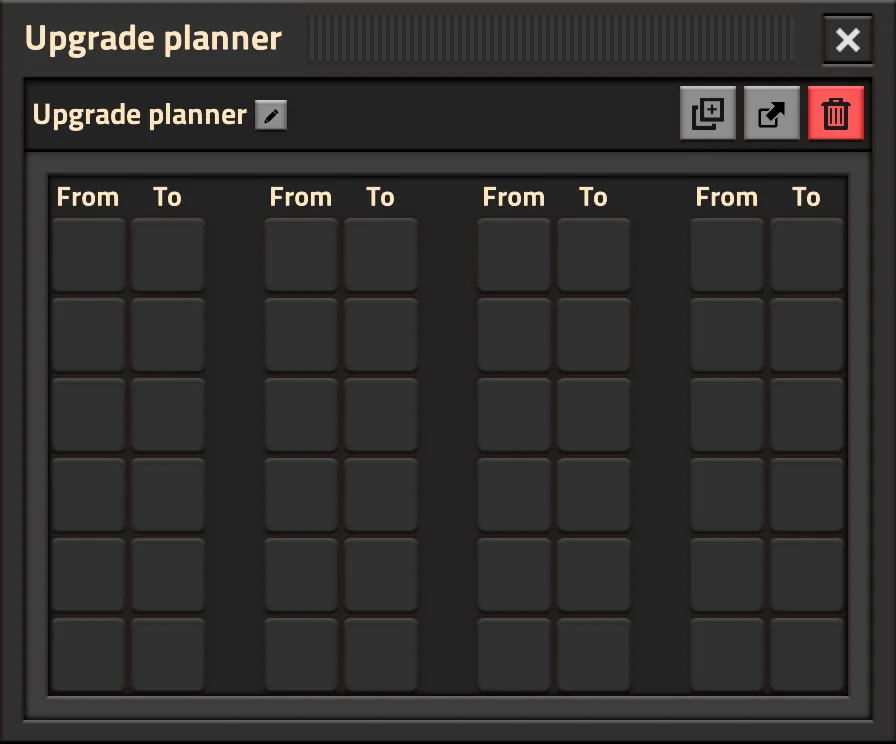
Create and store the planner
Choose the green planner icon after construction robotics has been unlocked. Put the planner in inventory; an in-hand temporary planner must be stored before its filter editor can be configured.
Open the filter editor
Right-click the planner. Each rule uses a From slot for the existing entity and a To slot for the replacement. Give the planner a useful name when you plan to store several variants.
Define exact pairs
For a belt-only pass, pair the current belt, underground belt and splitter tiers with their intended targets. Do not add assemblers or inserters unless those changes are also wanted.
Check supply and robot coverage
Make sure the logistic network contains enough replacement entities and that construction robots can reach the selected area. Otherwise yellow upgrade marks can remain pending for a long time.
Test, inspect, then expand
Drag over a short production segment, read the tooltip, let robots finish and verify belt direction, underground reach, machine recipes and module requests before selecting a larger area.
Blank vs Filtered Upgrade Planner: Which Should You Use?
A blank planner is convenient for a clean early-to-mid-game factory where every automatic tier step is welcome. A filtered planner is safer around mixed belt tiers, carefully tuned inserters, modules, rail signals, expensive machines or any block that should change in stages.
Upgrade a starter smelter
A blank planner can be reasonable when the goal is to raise all eligible furnaces, inserters and belts and the replacement inventory is ready.
Upgrade only the main bus
Use belt, underground-belt and splitter filter pairs. This prevents nearby assemblers and inserters from joining the order.
Swap module tiers
Use precise module pairs and test one machine row first. Module supply, existing requests and Space Age quality can make the result more expensive than expected.
Prepare an early-game blueprint
Use reverse pairs to change advanced entities to lower tiers, creating a version that can be built earlier without redesigning the whole layout.
How to Use an Upgrade Planner on a Blueprint
The planner can edit entities inside a saved blueprint, which is useful when one layout should survive several technology stages. Put the blueprint in inventory, open its edit window, and apply the held planner through the upgrade-planner slot. The edit happens immediately according to the configured filters.
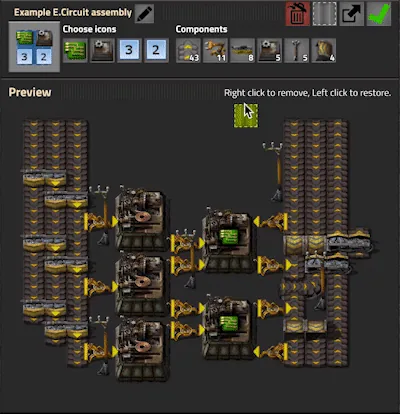
Keep a source copy
Duplicate or export a blueprint that is difficult to recreate. Applying an upgrade planner to blueprint contents is immediate and does not provide a simple one-click undo.
Move the blueprint into inventory
The Official Wiki notes that the blueprint must be in inventory for this operation; do not assume the same action is available directly inside the blueprint library.
Open the blueprint and apply the planner
With the planner held, right-click the blueprint, then use the grey upgrade-planner slot in the blueprint edit window. Review the preview before saving the revised copy.
Validate the revised design
Place it in a sandbox or open area. Confirm underground distances, belt tiers, module choices, power coverage and construction cost before replacing the book version used by the factory.
Cancel Upgrade Orders or Downgrade Safely
If robots have not completed an order, hold Shift and drag the upgrade planner over the marked area to cancel pending upgrades. If replacements already happened, cancellation cannot restore the old entities. Create a reverse filtered planner, supply the earlier-tier items, and run a controlled downgrade instead.
| Situation | Correct response | What to verify |
|---|---|---|
| Yellow upgrade circles are still visible | Shift-drag across the affected area to cancel pending orders | Make sure the selection covers every marked entity |
| Robots already replaced the entities | Apply a reverse From/To filter as a downgrade | Earlier-tier items are available and compatible |
| Only one entity family should be rolled back | Use narrow explicit filter pairs | No unrelated pair remains in the planner |
| A blueprint was changed immediately | Apply a reverse planner or restore the saved source copy | The original blueprint was backed up before editing |
Space Age Quality and Upgrade Planner Rules
With Space Age and the Quality feature enabled, configured planners can target another quality of the same compatible entity. Treat this as an expensive, explicit migration rather than a normal automatic tier upgrade: set the exact pair, verify quality-item supply, and test a small group before marking an entire production district.
Quality is not free throughput
Higher-quality machines can change speed, power and module planning. Recalculate the production target instead of assuming every downstream ratio remains balanced.
Use separate planner names
Keep tier upgrades, module swaps and quality upgrades in separate named planners so one drag cannot mix three cost models.
Protect proven blueprints
Save a normal-quality source blueprint, then create a quality-specific copy. This makes later troubleshooting and multiplayer sharing clearer.
Common Factorio Upgrade Planner Mistakes
Most failures come from using the right tool at the wrong scope. The planner is predictable when filters, supplies and the selected area are checked first.
| Mistake | Why it happens | Better practice |
|---|---|---|
| Dragging a blank planner over a mixed factory | Automatic rules include more eligible entity types than the player intended | Use explicit filters or divide the factory into small selections |
| Upgrades remain pending | Robots, replacement items, charging or network coverage are missing | Check logistic inventory and roboport reach before expanding |
| A belt upgrade creates a hidden bottleneck | One segment, underground belt or splitter was outside the selection | Trace the full route and compare throughput after robots finish |
| A blueprint loses its reusable lower-tier version | The planner edits blueprint contents immediately | Duplicate the blueprint before applying the planner |
| Quality upgrades consume scarce items | The selected area was too large or quality pairs were mixed with normal rules | Use a dedicated named quality planner and test a single row |
Recalculate After the Upgrade
An upgrade planner changes entities, not production goals. Open the calculator after a major machine, module or belt migration and verify that inputs and outputs still balance.
Factorio Upgrade Planner FAQ
How do I get the upgrade planner in Factorio?
Use the green upgrade planner icon on the shortcut bar after construction robotics has been researched in at least one game. The planner can be used immediately, but it must be placed in inventory before filters can be edited.
Why did the blank planner upgrade more than my belts?
A blank planner applies the game's automatic next-tier rules to several eligible categories, including belts, underground belts, splitters, inserters, assemblers and furnaces. Configure explicit belt pairs when only transport entities should change.
How do I cancel Factorio upgrade planner orders?
Hold Shift and drag the planner over entities with pending upgrade marks. This cancels queued orders. If robots already replaced the entities, use a reverse filtered planner to downgrade them.
Can an upgrade planner change a blueprint?
Yes. Put the blueprint in inventory, hold the planner, open the blueprint edit window and apply it through the upgrade-planner slot. Keep a backup because the blueprint contents change immediately.
Can the Factorio upgrade planner downgrade entities?
Yes. Configure the higher-tier entity in the From slot and the compatible lower-tier entity in the To slot. Supply the lower-tier items and test the reverse rule on a small area.
Does the upgrade planner work with Space Age quality?
With Space Age and Quality enabled, planners can be configured to move compatible entities to another quality. Use exact quality pairs and verify item supply and production ratios before selecting a large area.
Official References and Media Permission
Planner behavior and the three in-page screenshots were checked against Wube's official resources on July 25, 2026.